MacOS Sonoma is an upcoming operating system for Apple’s MacBook laptops, that is part of the iOS 17 family. With access to new screen savers, widgets on your desktop, better video conferencing support, a more advanced safari experience, a new messaging system AND MORE, you get a software update that will seem bigger than anything you’ve seen before!
I’ve been lucky enough to have had the opportunity to check out the Beta for iOS 17 and MacOS Sonoma, and in this blog, I’m going to give a summary of everything the software has to offer, while giving some of my thoughts as well.
Screen Savers
One of the biggest updates to MacOS is the fact that you can now select new slow-motion screen savers of different breathtaking locations from around the world, similar to what you’ll see when you’re Apple TV goes into standby mode.
From China, to Dubai, to London, to New York and San Francisco, the underwater world and MORE, these screen savers will look fantastic on any M1 Mac and later, with some of them even supplying an extremely realistic feeling to them too, especially in the underwater scenes, which will make you feel like sea creatures are about to swim right through your screen!
However, while the screen savers you can choose from currently are beautiful, I would like to see more countries other than the ones that are on offer at the minute being available as a screen saver too, such as Spain.
It would also be nice to have an option that let’s you turn your own slow motion videos into screen savers as well, like we have when saving one of our photos as a screen saver.
But hopefully that will happen soon.
Widgets on your desktop
As well as giving us the ability to choose screen savers that are slow motion, MacOS Sonoma also lets us add widgets to our desktops, like we were previously only able to do on the iPhone and iPad.
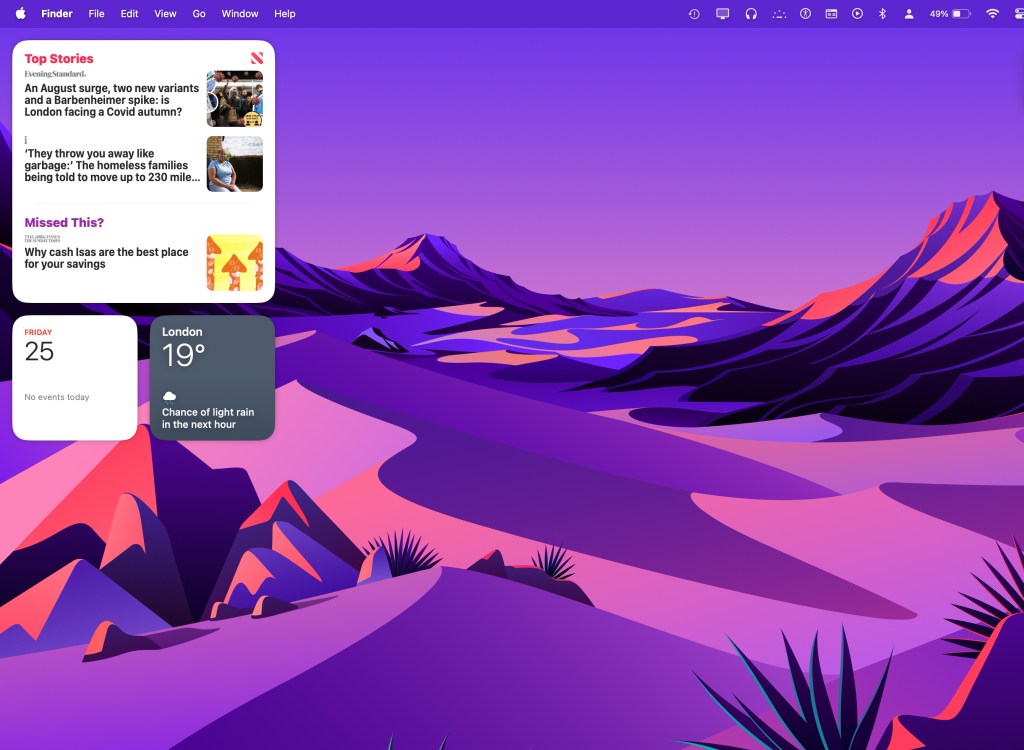
By right clicking on the Mac desktop, you just have to go down to the Edit Widgets option, then navigate down through the left window pain to see all the available options.
Once you’ve found something that you would like to open via a widget, you’ll just have to drag whatever that is onto the desktop, and then you’re all ready to go.
As you can tell from the photo included, the main kind of widgets I have are news ones.
If you change your mind about a widget, however, and you’d like to remove it, all you’ll have to do is right click on the widget you want to remove and then click on ‘Remove Widget’.
Video Conferencing
A new Presenter Overlay Feature keeps you part of the conversation while you’re sharing your screen, with a choice between two overlays, one large and one small. The large overlay will help keep the spotlight on you, with your screen framed next to you on a separate layer. It even lets you move, walk and talk in front of your content!
If you use the small overlay, however, you will appear in a moveable bubble over your shared screen. This also makes it easy to move yourself around the screen and to point to important details.
You’ll also have access to a new Screen Sharing picker, that includes an option called ‘Share on Zoom’. You can even react with your hands to add reactions that will fill the camera frame, but this is something I have mixed feelings about, which I’ll outline more in my conclusion.
You can even control the composition of your video when using Studio Display or an iPhone as a camera!
Safari and Passwords
There’s many new features that Safari has got, which all deserved to be mentioned, so here’s all of them listed below.
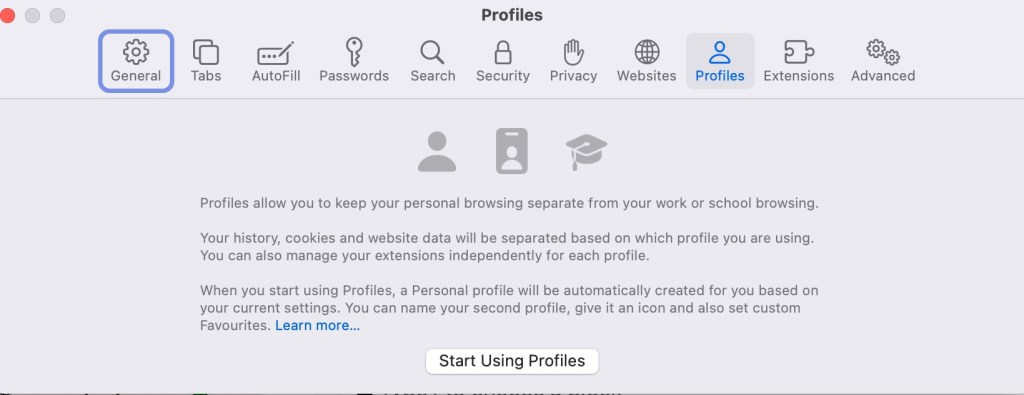
For starters, you can now create a profile to help keep your browsing private, even allowing you to keep everything separate, such as with Work and Personal Profiles.
You can also separate your history, extensions, Tab Groups, cookies and favourites into separate sections, and even switch between profiles as you browse.
Web Apps
Something else MacOS Sonoma lets you do is to turn any website into an app by creating a web app.
Having been available on the iPhone and iPad for years, the days are now gone when you wish your favourite websites would become an app on your Mac, because you can turn them into an app with just a number of clicks.
To turn a website into a web app, the first thing you need to do is to go to a website.
As soon as you’ve got over to the website you want to use, you just need to go up to File, and as soon as your mouse is hovering over that, you just have to go down until you reach an option that is called ‘Add to Doc’.
Click that, and the next thing that will come up will allow you to rename the web app if you want to.
As soon as your happy, either click Enter or move the mouse down to Done.
The web app will appear in your doc as soon as you’ve finished this.
Messages
There are brilliant new features that have made their way to Messages, which will be similar on all the versions of iOS17 across all the different Apple devices, and on different messaging platforms.
For starters, you’ll be able to find the message you’re looking for faster by combining search filters to help narrow your search.
The new catch-up arrow lets you jump to the first message you haven’t seen in a conversation, and to reply to that message, you just have to swipe right.
If you want to know if a friend or family member has made it safely to a destination they are travelling to, you can ask them to turn on their location by tapping the plus button, and after a location has been shared with you, you can view it directly within your conversation.
Stickers have been updated to let you turn Live Photos into stickers. And what makes this better is that you’ll be able to sync your stickers with iCloud so you can still access them whether you’re on a Mac, an iPad or an iPhone.
Notes, PDFs and Pages
Enhanced AutoFill means you can use all your saved information from Contacts to fill out a PDF or any relating documents faster.
Not only this, but you’ll also be able to flip through a PDF in a note like it’s a book, and you can link any notes that relate to each other.
Keyboard
There haven’t been many updates to the keyboard features you’ll find overall, but one of the updates that has come around is more accurate autocorrect.
Autocorrect will deliver even better support for you as you type, starting with autocorrected words being temporally underlined so you know what has been changed, though you can still revert back to the original word with just a click.
And as you type, you will spot predictions in line with what you’re trying to say coming up in light grey.
If you’re happy with what the software is trying to say, you can add the words in by just clicking Enter or by clicking the trackpad.
Privacy and Security
Communication Safety now includes predictions for sensitive photos and videos, which even extends beyond Messages to include explicit content sent and received in a photo picker and other third-party apps.
You also have the option to blur sensitive content before you see it.
Conclusion
With access to stunning screen savers, the ability to add Widgets to the desktop, and the ability to turn websites into apps within a few clicks, I think this version of iOS is my favourite when compared to everything else that has been released in the last few years.
No, I’m not happy with everything, and I would still like to see some more screensaver options so the user can have a bigger choice that goes beyond everything that is available at the minute.
I’ve also had problems with some of my Web Apps, for example one of my web apps opens up in Safari anyway, and another one seems to be missing the back and forward buttons that are meant to be at the top.
Another thing I’m disappointed in is that you can only react to everything that is being said on a video call by using their hands to give gestures, as people who can’t use their hands should equally be able to select emojis that will show up with just a mouse and keyboard as well, so they won’t feel like they’re missing out.
But nevertheless, I am happy with everything else.
I love how easy it is to add Widgets (even though you will have to drag), how easy it is to create a private browsing profile, how easy it is to create Web Apps, and the respect that is given to privacy and consent.
The only thing that could possibly make adding widgets even better would be for options to exist that lets users who can’t drag to just click on an area of the screen where they want to put a widget.
It would also be good if colour blind users could select what they would like the colour of text with autocorrect to be so it will work best for them.
But other than all of that I’m happy with everything MacOS Sonoma has to offer, and I think you’ll love it when it is officially released to the public.
MacOS Sonoma and the other iOS 17 softwares will be available for the public to download in September, but you might have to wait until October.
It is compatible with:
- The 2017 iMac Pro and later
- The 2018 MacBook Pro and later
- The 2018 Mac Mini and later
- The 2018 MacBook Air and later
- The 2019 iMac and later
- The 2019 Mac Pro and later
- The 2021 M1 series of Mac computers and later
- The 2022 M2 series of Mac computers and later
- The 2022 Mac Studio and later

 Phoebs Lyle Tech Reviews