EWeLink is a Smart Home platform that supports multiple brands of smart devices, including Sonoff, which enables connections between diversified smart hardware, and which works with popular Smart Speakers, including Alexa, Google Assistant, SmartThings and Apple Home.
Its features include a remote control, schedule settings, a time, loop timer, Inching, smart scenes, sharing, grouping, LAN Mode, and Voice Control (the last of which you will get access to by connecting your account to your Smart Speaker). And the devices it is compatible with are Smart Curtains and Blinds, as well as Door Locks; Wall Switches; Sockets, Smart Light Bulbs, RF Remote Controllers, IOT Camera Motion Sensors, and more!
I’ve been using it with my smart blinds for a couple of months now, which I wanted to go up and down at a certain time of the day. In this blog, I will be outlining how you can create a schedule for your smart blinds to go up and down at a certain time, so you can do the same if you have Smart Blinds at home as well, and would like to set up the same schedules to help make your life easier.
So How can I set my smart blinds up to go up and down on a schedule using EWeLink?
First of all, you’ll have to get Smart Wall Switches installed, along with any smart controls required to make your Smart Blinds work, but once all of this has been installed, it’s just a point of downloading the app.
The EWeLink app can be downloaded for free from the Apple App Store, Google Play, or on other Android stores, and once you download it, you’ll have to create an account. After your account has been created, however, you’ll be able to set everything up.
First, you’ll have to hit the add button at the bottom of the screen to help the app find your blinds (or any other smart device), and if it doesn’t discover them the first time, just tap the same button and try again.
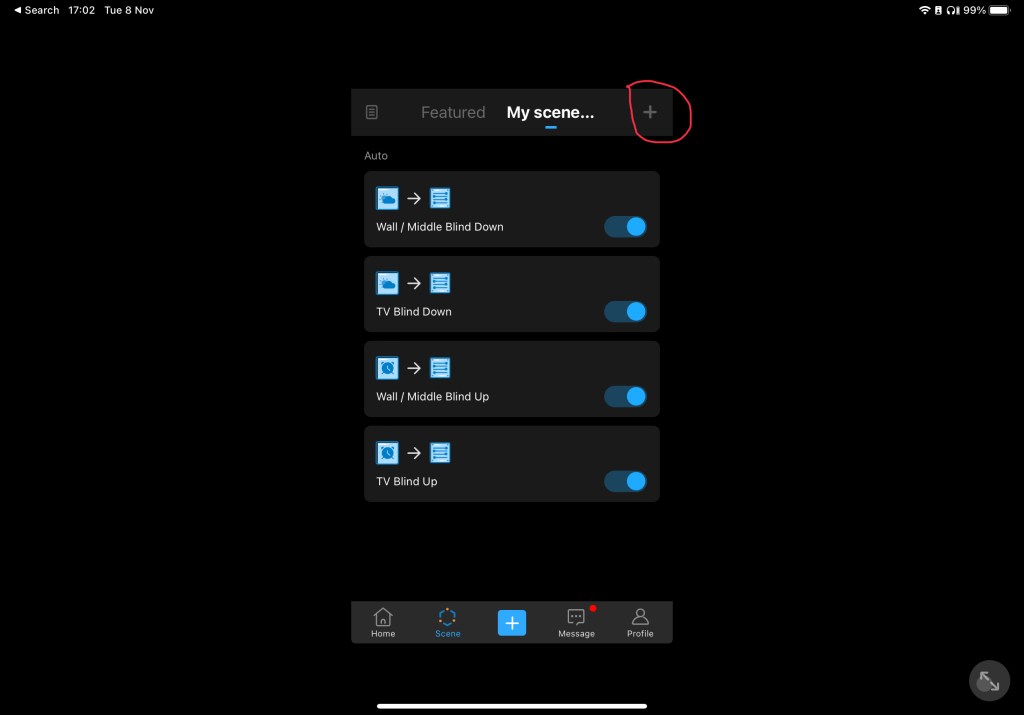
My blinds have already been discovered by EWeLink, so I don’t need to do that again.
After your blinds have been discovered, you’re ready to get started on setting up Scenes.
To do this, you’ll have to tap the + button in the top right corner of your screen.
This will bring you to a page with labels such as “If this triggers” and “Then that actions”, with Add beneath both of them. If you tap the first Add, then you’ll be taken to a Set Trigger page, which gives you the option to choose between four different triggers.
These are:
- Tap to perform
- Time of Day
- Sunrise/Sunset, and;
- Smart Device
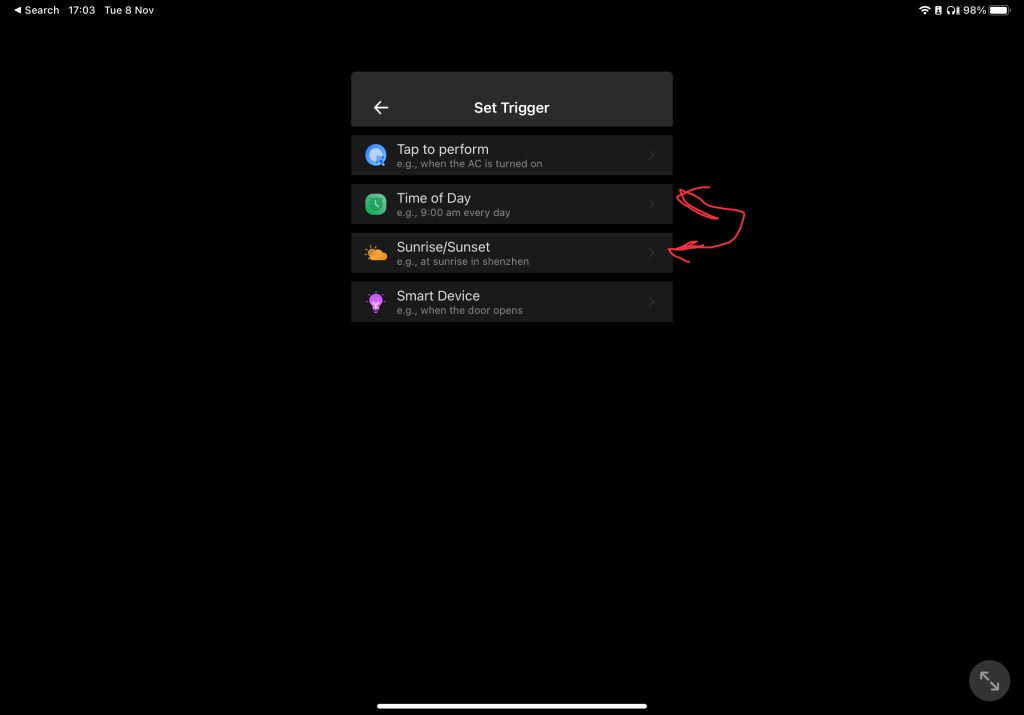
The options I’ve chosen for my schedules are Time of Day and Sunrise/Sunset, though there both for different parts of the day.
Letting you into a few of my own schedules, I have my blinds scheduled so that they will go up at 10am in the morning, and go down at sunset.
You can do the same thing by using the Time of Day trigger, as well as the Sunrise / Sunset trigger.
To set up a Time of Day trigger, you’ll just have to tap the Time of Day option, and this will then take you to a page where you can select a time of day for your blinds to go up and down at. If you would like this to happen every day, you’ll have to hit repeat, and then tap through and select every single day in the week.
After you do this, you’ll need to select whichever smart device you want to trigger this.
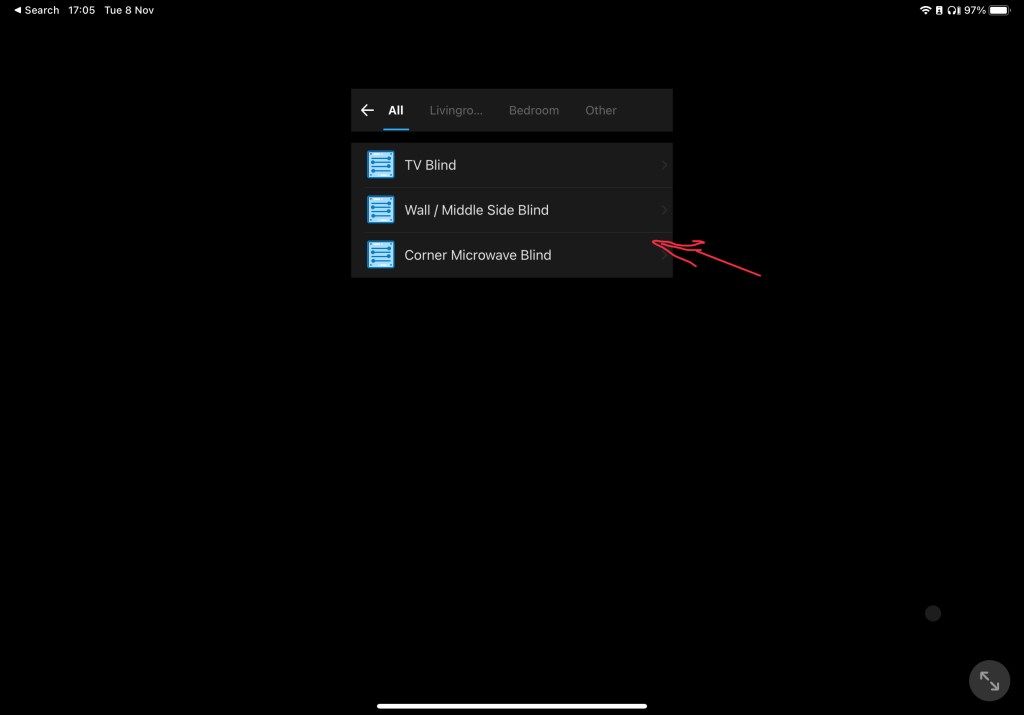

Next, you’ll be brought up to the channels you need to set up for all of this to work. The way my TV and Corner Microwave Blinds are set up is that Channel 1 puts the blind up, and Channel 2 puts them down. Neither can work when turned on at the same time. So at this point, you’ll just need to turn either Channel 1 or Channel 2 on, depending on whether you want them to go up or down.
Lastly, you’ll just have to hit save, and you’ll then be asked to name your scene.
You can set the sunset schedule up using the same method, only you’ll be tapping sunset instead. You can also schedule everything to turn on at sunrise.

 Phoebs Lyle Tech Reviews